
Transfer files
Move recordings from Audream Note to the Audream App with Bluetooth transfer or Wi-Fi Fast Transfer.
Audream Note stores recordings locally first. When the device connects to the Audream App, the app lists pending recordings and transfers them into Notes.
Before you start
- Keep Audream Note close to your phone.
- Turn on Bluetooth and keep the Audream App in the foreground.
- For Fast Transfer, keep Wi-Fi enabled and approve the iOS join prompt when it appears.
Transfer recordings
- Open the Audream App and connect Audream Note.
- Open the transfer screen from the device card.
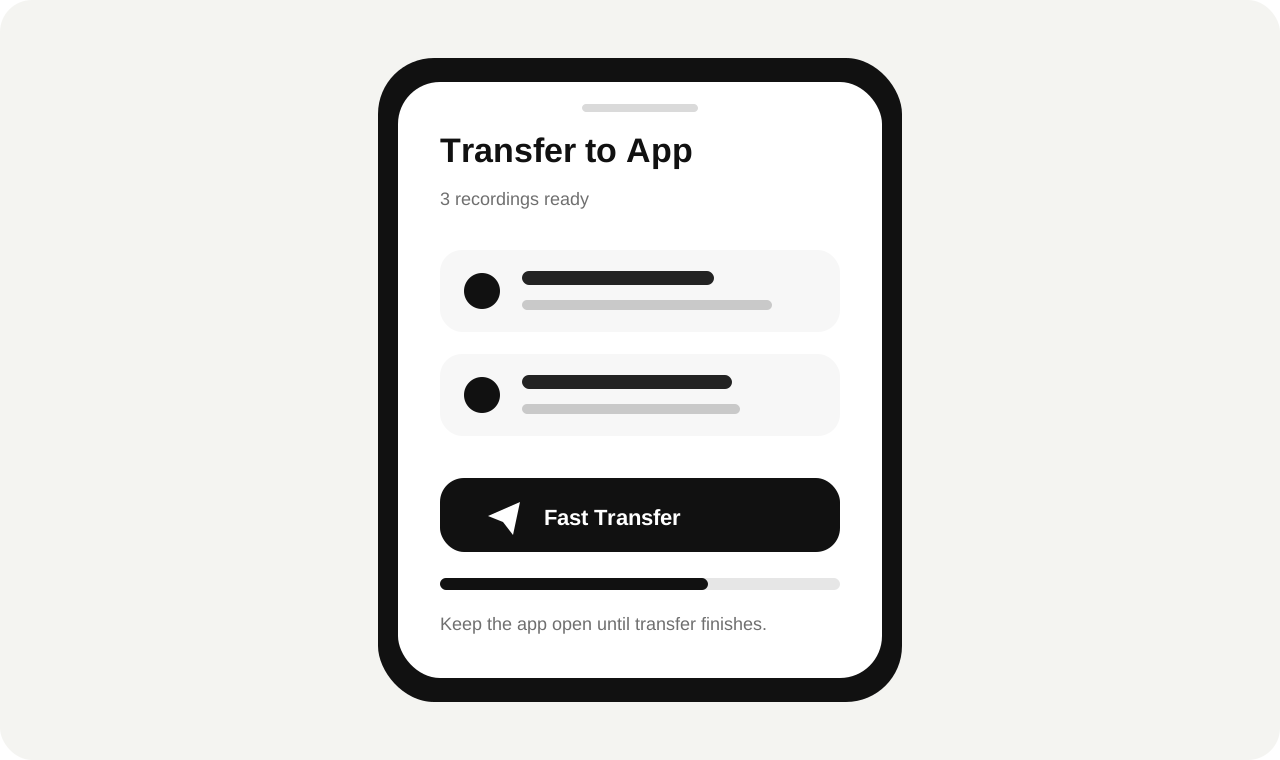
- Choose Bluetooth transfer for short recordings or Fast Transfer for larger files and batches.
- If Fast Transfer starts, tap Join on the iOS Wi-Fi prompt.
- Keep the app open until every selected recording appears in Notes.
After transfer
After a batch finishes, the app verifies the local file before cleanup. If cleanup is interrupted, the next device sync can verify and remove already transferred recordings.
Why did Fast Transfer pause after I canceled Join?
The app pauses automatic Wi-Fi retries after a canceled join prompt so the system dialog does not keep appearing.
Can I still transfer over Bluetooth?
Yes. Bluetooth is slower, but it can transfer smaller recordings without switching Wi-Fi networks.
Need more help?
Include your device model, serial number, app version, and the steps you tried.
Contact Audream Support